
|

|

 |
|
|
Loading:
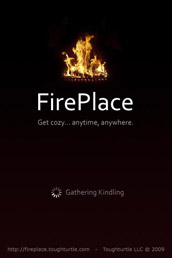
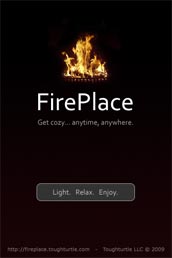
When you first launch FirePlace, the App will begin "Gathering Kindling" for the fire. Once that is done, you will be presented with a button that says "Light. Relax, Enjoy". Taping this button will start the FirePlace. FirePlace automatically begins with the crackling sounds of a real fire. You can always turn that sound off if you like. |
|
 |
|
|
|
The FirePlace:
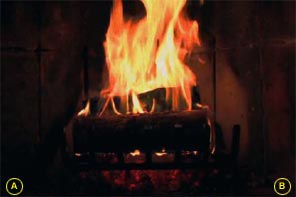
Now the FirePLace is roaring and crackling. There are two tapable hotspots on the FirePlace screen, one in the lower left corner(A) and one in the lower right corner (B).
|
|
|
|
|
|
The Toolbar:
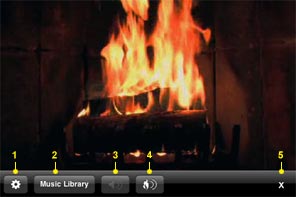
The Toolbar is where you can nigate through all the functions of the App. At anytime you can hide the toolbar by tapping the X on the toolbar.
|
|
|
|
|
|
The Settings:
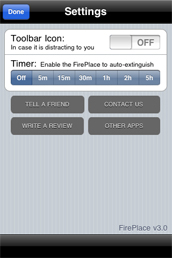
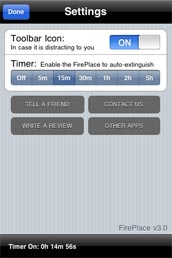
On the Settings screen you have two main functions, and four sub-functions: Toolbar icon: If you would like to hide the Circle icon that turns the Toolbar On and Off, you can do so with this function. Timer: Maybe you like to fall asleep to the FirePlace? With the timer function you can set the FirePlace to auto-extiguish after a set amount of time. This will help to conserve battery life of the device. When you choose a time, the countdown will begin immediatley and will be visible in the bottom Toolbar on this Settings page. You can also access the timer countdown by tapping the lower left corner of the screen when the FirePlace is running. Other functions on the Settings screen are: Tell-A-Friend: In-App email function to spread the word about FirePlace. Contact Us: In-App email function to contact me. Write A Review: Connect to iTunes and let everyone know what you think of the App. Yes, reviews and ratings ARE very important to the success of the App. Other Apps: Connect to iTunes and see other Apps from Toughturtle. |
|
|
|
|
|
Music Management:
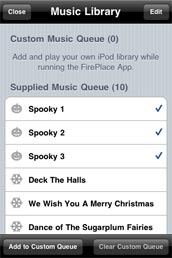
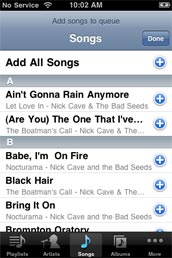
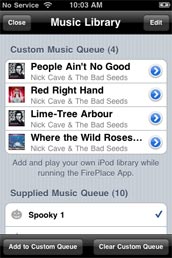
FirePlace comes with a handful of sound files to play while enjoying the App. They are mainly seasonal sounds and can give the App the extra added coziness that you are looking for. You can pick and choose which ones to play by tapping on the item. A checkmark means that it will be played. But there's more! You can access your iPod music library from within the App and setup a Custom Music Queue to play while the FirePlace roars. To add music from your iPod, just tap the "Add To Custom Queue" button and the iPod functions will appear. From here you can select any audio that resides in your library. Select some items and tap Done. You will then see the Custom Queue populate with your selections. |
|
|
|
|
|
Music Management (Edit):
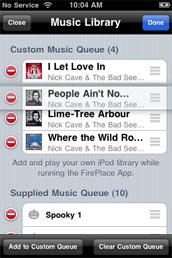
To remove the entire Custom Queue, simply tap the Clear Custom Queue button. Maybe you want to re-arrange the order of your Custom Queue? No problem, just tap the Edit button and the Delete and Re-arrange controls will appear. Now you can remove or change the play order with just a few finger gestures. If you want to quicly remove one song at a time, you can also just tap the Blue Arrow icon next to the song and it will be removed. The supplied music that comes with the App can be re-arranged but cannot be deleted. |
|
|
|
|
|
Returning To the Fire:
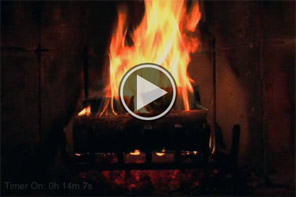
After you return to the FirePlace, the fire will be paused. Just tap the Play icon overlayed on the screen to restart the FirePlace. |
|
|
| Copyright © 2010 Toughturtle LLC. All rights reserved. | About The App | Manual | Support | Contact | Buy Now | iPad version |